
Recording customer payments correctly in QuickBooks Online prevents cash flow confusion and accounting errors. Many business owners struggle with entering deposits in QuickBooks Online, leading to messy financial records.
We at Optimum Results Business Solutions see businesses lose hours fixing deposit mistakes that could have been avoided. This guide walks you through the proper deposit process step by step.
Understanding Deposits in QuickBooks Online
Types of Deposits You Can Record
QuickBooks Online handles three main deposit types that match real business scenarios. Customer payments from invoices represent the most common deposit type, whether customers pay by check, cash, or credit card. Sales receipts for immediate transactions create another deposit category when customers pay at the point of sale. Bank transfers and other income like interest payments form the third category that businesses record regularly.
Direct Deposits vs Undeposited Funds Strategy
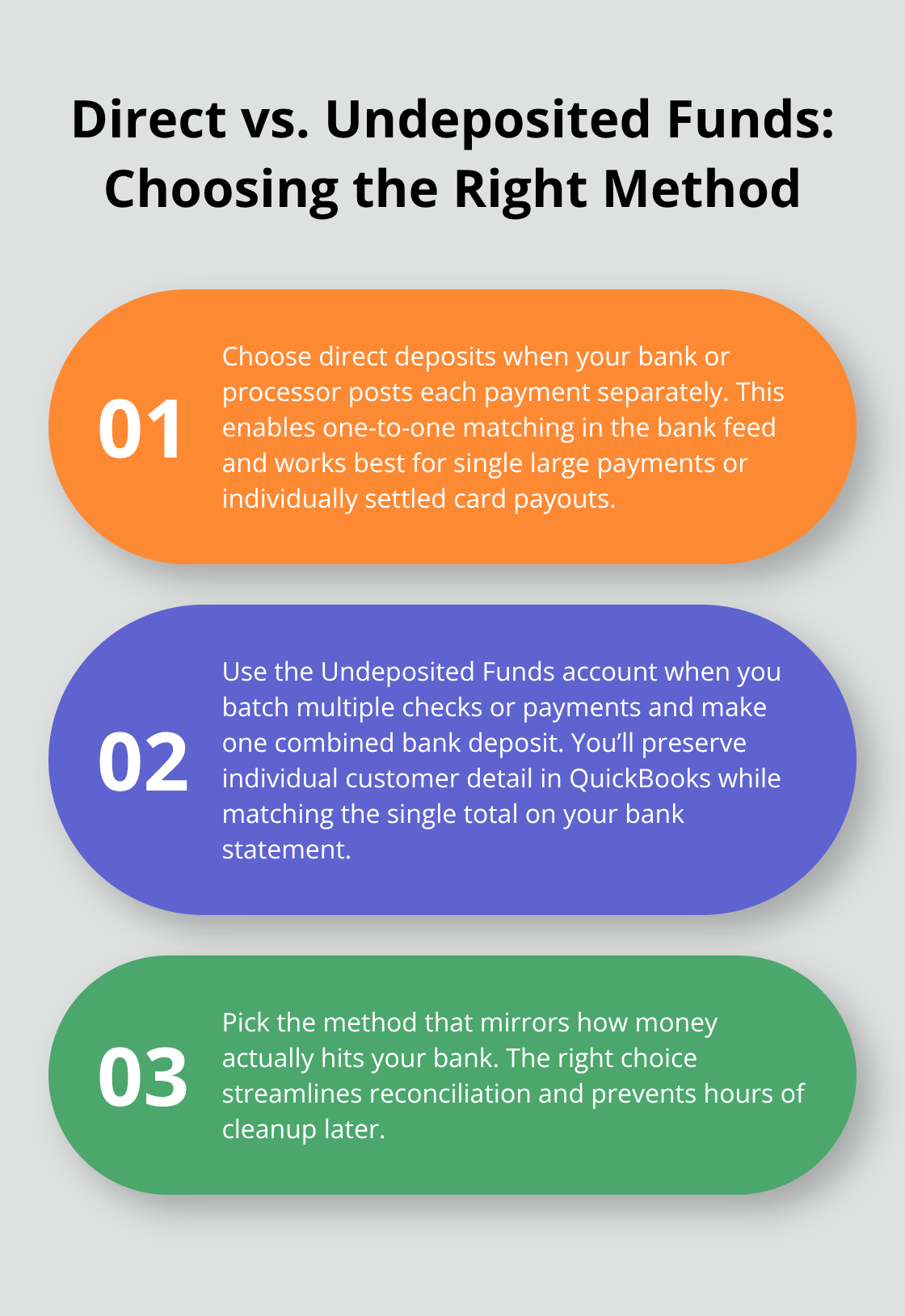
Direct deposits work when your bank processes individual payments separately and you can match each transaction one-to-one in your bank feed. Choose this method when you receive single large payments or when payment processors deposit funds individually. The Undeposited Funds account serves as a temporary space when you physically deposit multiple checks together at the bank.
Your bank statement shows one combined deposit total, but QuickBooks needs to track each individual payment for accurate customer records. The Undeposited Funds account acts as a virtual holding area for payments received but not yet deposited, helping businesses match QuickBooks records with bank statements.
When Each Method Works Best
Use Undeposited Funds when you collect multiple customer payments and deposit them together at your bank branch or ATM. This method prevents the nightmare scenario where your bank shows one deposit of $2,847 but QuickBooks shows three separate deposits that don’t match during reconciliation.
Choose direct deposits only when payments go straight to your bank account through processors (like Square or Stripe), or when you deposit individual checks separately. Payment processing timing affects your choice: QuickBooks deposits funds processed before 3 PM PT the next business day, while payments processed after 3 PM PT are deposited within two business days. The wrong choice creates reconciliation headaches that take hours to fix and often require professional help to resolve.
Now that you understand which deposit method fits your business, let’s walk through the exact steps to enter deposits correctly in QuickBooks Online.
How Do You Record Deposits in QuickBooks Online
Access the Bank Deposit Feature
Click the plus sign in the upper right corner of QuickBooks Online, then select Bank Deposit from the menu. This action opens the deposit creation screen where you combine multiple payments into one bank deposit record. QuickBooks displays all payments that sit in your Undeposited Funds account, showing customer names, payment methods, and amounts in a clear list format.
The deposit window shows your total undeposited amount at the top, which should match the sum of individual payments you plan to deposit. Check each payment you want to include with the checkbox next to it. QuickBooks calculates your deposit total automatically as you select payments, which prevents math errors that cause reconciliation problems later.

Select Payments from Undeposited Funds
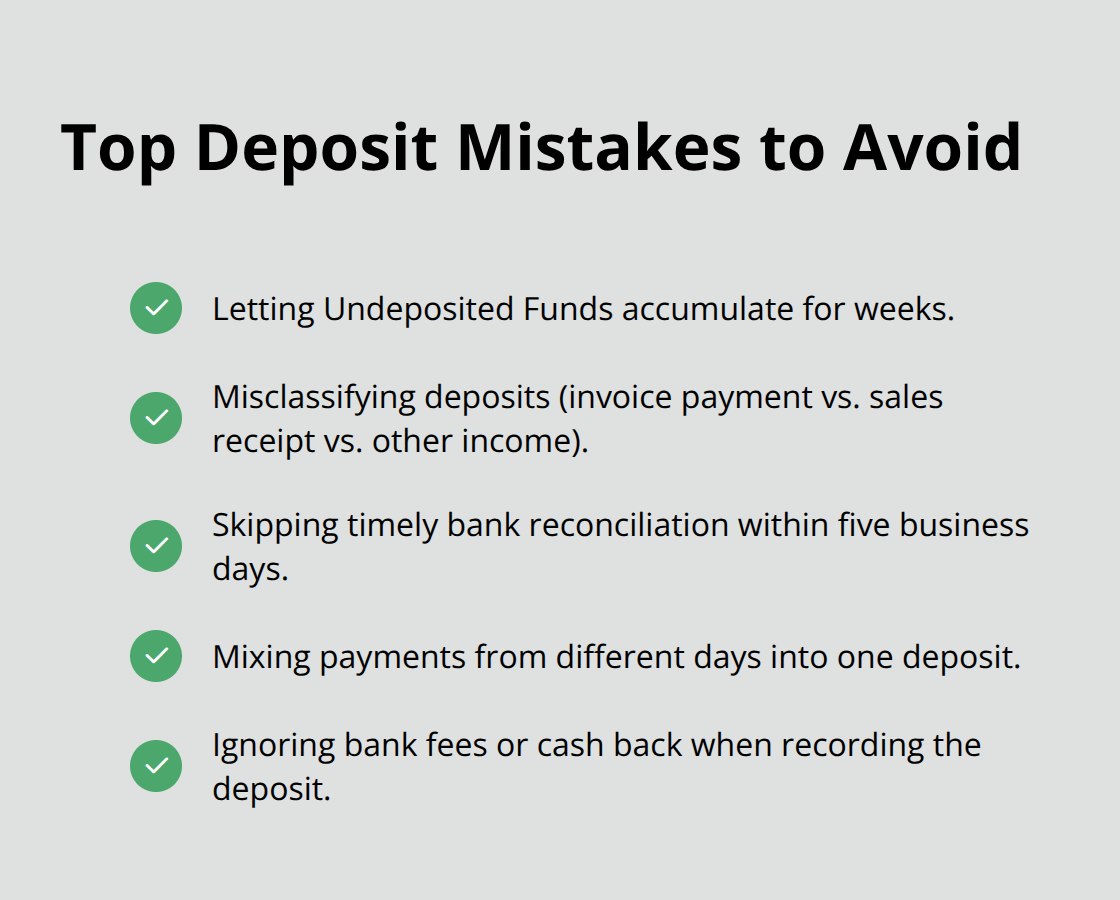
Review each payment in the list before you select it for deposit. QuickBooks shows the customer name, payment date, payment method, and amount for each transaction. Select only the payments you physically deposited together at the bank. Mixed deposits (combining payments from different days or different deposit trips) create confusion during bank reconciliation.
The system allows you to filter payments by date range or customer name if you have many transactions in Undeposited Funds. Use these filters when you need to locate specific payments or when your list becomes too long to scan easily.
Add Bank Fees and Other Adjustments
Scroll to the bottom section labeled “Add funds to this deposit” to record bank fees. Enter your bank fee as a negative amount, select Bank Service Charges as the account, and write a brief description (such as “ATM fee” or “deposit fee”). This records the fee against your deposit total, which matches exactly what your bank statement shows.
For deposits with cash back or other adjustments, use the same Add funds section but enter the cash back amount as a negative number. Select the appropriate account where the cash went, typically Petty Cash or Owner Draw. Your final deposit total in QuickBooks must match the actual amount that hits your bank account, or reconciliation becomes impossible.
Verify and Save Your Deposit
Double-check that your deposit total matches your bank deposit slip before you save the transaction. The amount QuickBooks calculates should equal the exact amount your bank processed. Any discrepancy here will cause problems when you reconcile your bank account next month.
Save the deposit only when all amounts balance perfectly with your deposit slip and bank records. Once saved, QuickBooks moves the selected payments out of Undeposited Funds and into your chosen bank account. This process sets up your records for smooth bank reconciliation, but mistakes in deposit entry can create reconciliation nightmares that require careful correction.
Common Mistakes When Entering Deposits
Business owners waste 4-6 hours monthly fixing deposit errors that stem from three preventable mistakes. The Undeposited Funds account becomes a graveyard of forgotten payments when businesses fail to clear it regularly. Undeposited funds can pose problems with your reconciliation.
These orphaned payments create phantom balances that inflate your accounts receivable and distort cash flow reports.
Undeposited Funds Accumulation Problems
Check your Undeposited Funds balance weekly to prevent accumulation disasters. Payments that sit in this account for more than two weeks signal a breakdown in your deposit process. Businesses often discover $15,000+ trapped in Undeposited Funds, which makes them think they have more cash available than reality shows. Run the Undeposited Funds detail report monthly to identify payments that need immediate attention. Clear all payments within 48 hours of physical deposit to maintain accurate financial records.
Deposit Categorization Errors
Wrong deposit categories destroy your financial report accuracy and complicate tax preparation. Sales receipts recorded as invoice payments mess up customer account balances and create duplicate income entries. Bank transfers miscategorized as customer payments inflate your revenue figures artificially. Choose Invoice Payment only for actual customer invoice settlements, Sales Receipt for point-of-sale transactions, and Other Income for interest, refunds, or transfers. These distinctions matter significantly when you prepare year-end reports and file taxes.
Bank Reconciliation Oversights
Skip bank reconciliation after deposit entry and you guarantee future accounting nightmares that cost hundreds in professional cleanup fees. Your QuickBooks deposit total must match your bank statement deposit amount exactly (down to the penny). Differences of even $0.01 indicate errors that compound monthly until reconciliation becomes impossible. Reconcile within 5 business days of each deposit to catch mistakes while transactions remain fresh in memory. Late reconciliation attempts often require you to reconstruct deposit details from incomplete records, which turns simple fixes into expensive professional interventions.
Final Thoughts
Accurate deposit entry in QuickBooks Online transforms chaotic financial management into controlled business operations. You must clear your Undeposited Funds account within 48 hours of each bank deposit and reconcile accounts within five business days. Correct transaction categories from the start prevent expensive cleanup work that drains business resources.
Proper deposit records eliminate guesswork from cash flow management and provide accurate financial statements for business decisions. When entering deposits in QuickBooks Online becomes routine, you gain confidence in your financial position. You avoid the stress and costs that reconciliation errors create for your business.
Small businesses often underestimate accurate bookkeeping complexity until deposit mistakes compound into expensive problems. We at Optimum Results Business Solutions provide expert QuickBooks Online support and customized bookkeeping solutions for service-based businesses. Professional bookkeeping support prevents deposit errors, maintains compliance, and delivers the financial insights you need for business growth (while reducing your administrative burden).