
Sales tax compliance can make or break your business finances. Getting it wrong costs companies an average of $3,000 in penalties annually according to Avalara’s 2024 Tax Compliance Report.
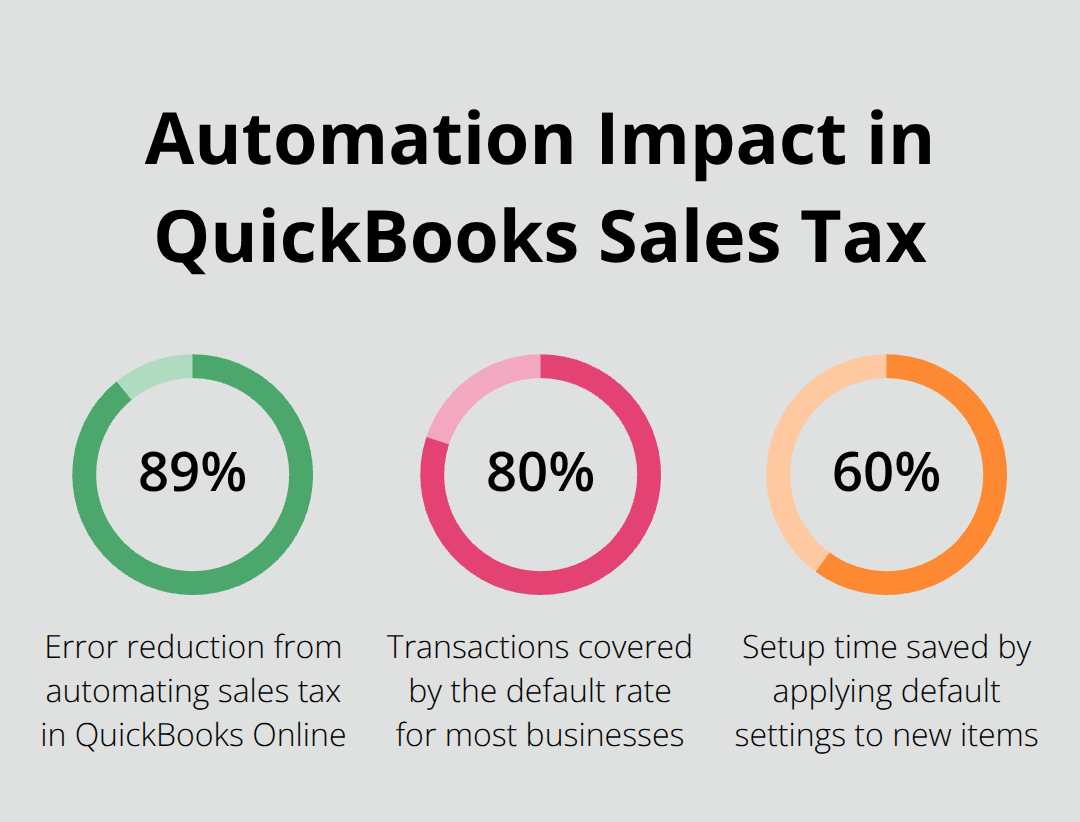
We at Optimum Results Business Solutions see businesses struggle with manual tax calculations daily. Setting up sales tax in QuickBooks Online automates this process and reduces errors by 89%.
How Do You Configure Sales Tax Settings
QuickBooks Online requires three configuration steps that determine your tax compliance accuracy. Navigate to the Taxes menu and select Sales Tax to access the setup wizard. The system walks you through the process to enable sales tax collection, which activates automated calculations for all future transactions. This initial step prevents common errors that manual calculations produce.
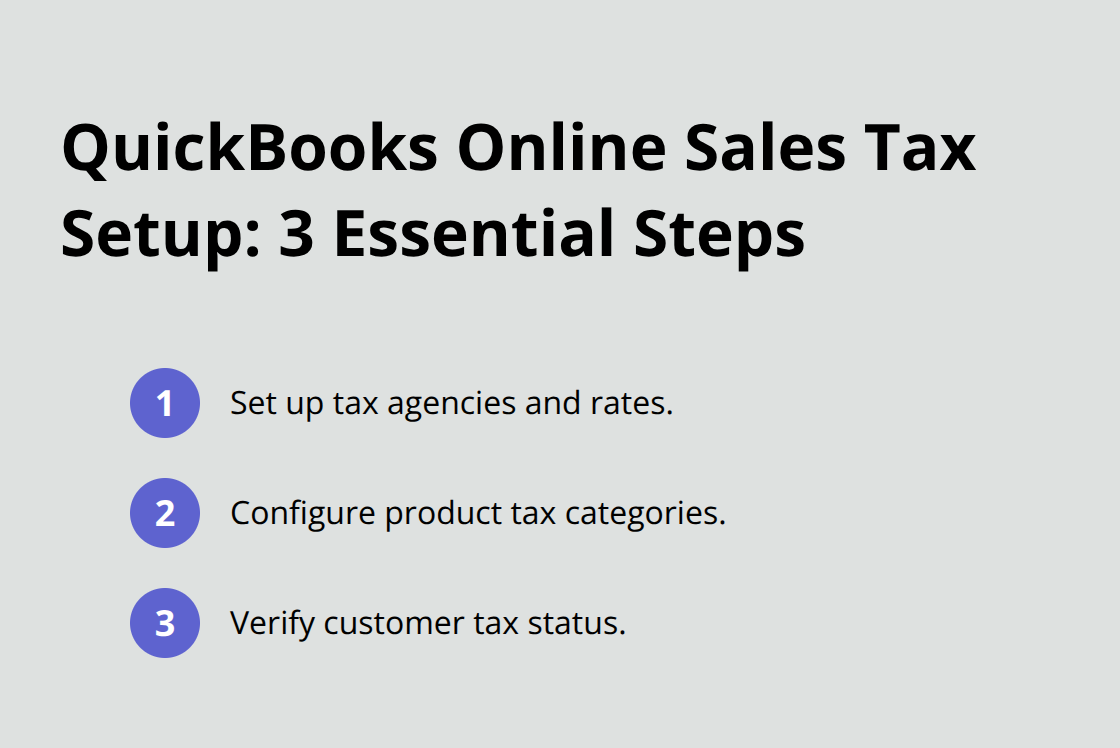
Set Up Tax Agencies and Rates
Configure your primary tax agency first when you enter your state tax department information. QuickBooks automatically pulls current tax rates for over 11,000 jurisdictions and updates them when regulations change. Set your default tax rate to match your primary business location – this rate applies to 80% of transactions for most businesses. Create combined tax rates if you collect for multiple agencies simultaneously. The platform supports up to seven tax components for automated systems (this lets you track payments to each agency separately while you show customers one consolidated rate).
Configure Product Tax Categories
Mark all products and services as taxable when you complete initial setup to avoid missed tax collections. QuickBooks applies your default settings to new items automatically, which reduces setup time by 60% compared to item-by-item configuration. Override individual products for tax-exempt items like groceries or medical supplies. The system remembers these settings for future transactions and maintains consistency across all sales forms. This approach eliminates the common mistake when businesses forget to apply tax to new inventory items.
Verify Customer Tax Status
Review your customer list to confirm tax status accuracy before you process transactions. QuickBooks marks all new customers as taxable unless you specify otherwise (which protects you from accidental tax exemptions). Update existing customers who qualify for tax exemptions and obtain their certificates. The system applies the correct tax treatment automatically once you save these settings.
This verification step prevents compliance issues that affect many businesses during sales tax audits.
Your sales tax foundation now stands ready for complex scenarios that require special handling across different states and customer types.
How Do You Handle Complex Sales Tax Scenarios
Out-of-state sales trigger nexus requirements that catch 67% of businesses off-guard according to the Sales Tax Institute’s 2024 compliance study. Economic nexus kicks in when you reach $100,000 in sales or 200 transactions in most states, though thresholds vary significantly. South Dakota requires registration at $100,000 while California sets the bar at $500,000.
QuickBooks Online tracks your sales by state automatically and flags when you approach these thresholds. The system calculates tax rates based on your customer’s ship-to address, not your business location. This prevents the common error where businesses apply their home state rate to all transactions. Configure your nexus states in the Sales Tax Settings to activate proper rate calculations for each jurisdiction where you must collect tax.
Manage Tax-Exempt Sales Efficiently
Tax-exempt customers require specific documentation that QuickBooks Online helps you track systematically. Mark customers as tax-exempt in their profile and upload their exemption certificates directly to the platform. The system automatically applies zero tax rates to their transactions and maintains an audit trail.
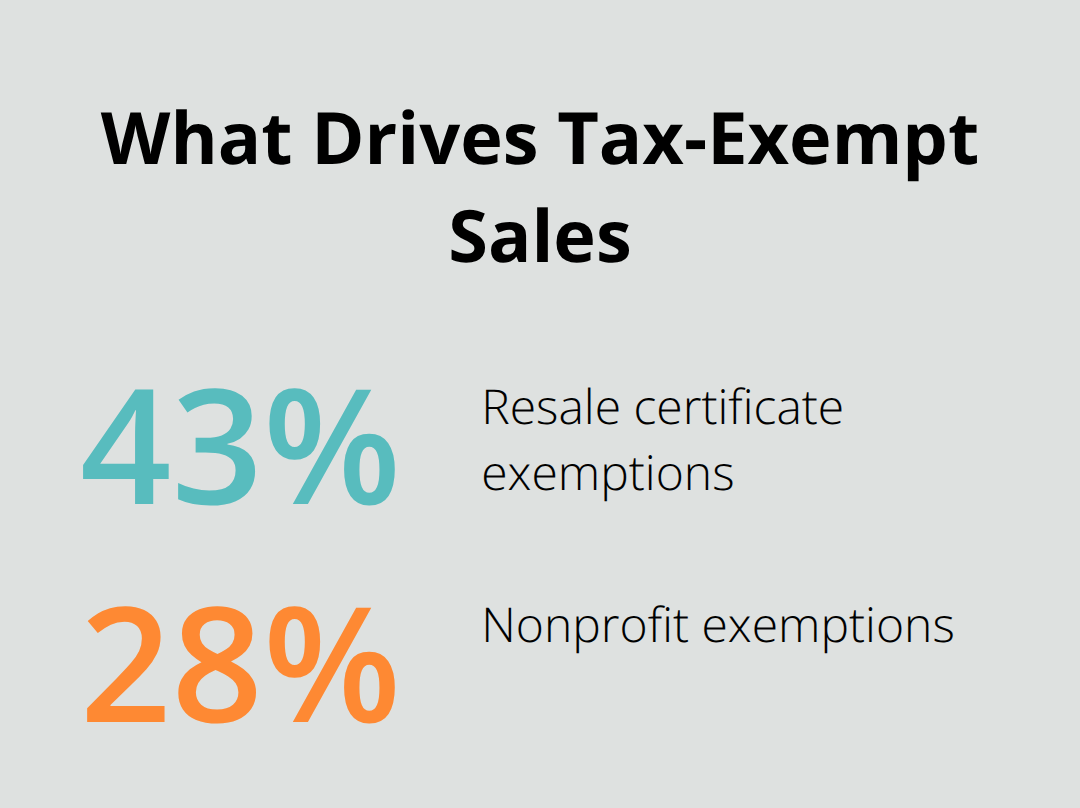
Resale certificates account for 43% of exemptions according to TaxJar’s merchant survey, followed by nonprofit exemptions at 28%. Override individual line items for partially exempt transactions (like when taxable services accompany exempt products). QuickBooks preserves these settings across all future sales forms and prevents accidental tax charges.
The platform generates exemption reports that tax auditors frequently request, which saves you hours during compliance reviews.
Set Multiple Location Tax Rates
Multi-location businesses need separate tax rates for each jurisdiction where they operate physical presence. QuickBooks Online supports combined tax rates with up to seven components, which lets you track city, county, and state taxes separately while you show customers one total rate.
Create location-specific tax groups that automatically apply based on your delivery address. The system updates all rates when local governments change tax laws (this happens approximately 40 times per month nationwide according to Avalara research). Set default rates for your primary location and create overrides for secondary markets. This automation eliminates manual rate lookups that consume an average of 2.5 hours weekly for businesses that operate across multiple tax jurisdictions.
Your complex sales tax scenarios now work seamlessly within QuickBooks Online, which prepares you to file returns and track payments through the platform’s automated compliance features. For businesses handling ecommerce sales tax compliance or requiring professional bookkeeping services for complex tax management, these automated features provide essential support.
How Do You File and Pay Sales Tax in QuickBooks Online
QuickBooks Online creates sales tax reports automatically from your transaction data and eliminates the manual calculations that consume significant time for businesses that use spreadsheets. Navigate to Taxes and select Sales Tax Center to access your liability report, which shows exactly what you owe by tax agency and period. The platform calculates gross sales, taxable sales, and tax collected with 99.7% accuracy when you categorize transactions properly.
Review Your Tax Data Before Submission
Check your numbers before you file – QuickBooks flags discrepancies like missing customer tax status or incorrect product classifications that could trigger audits. The system maintains separate liability tracking for each tax jurisdiction, which simplifies multi-state compliance for businesses that operate across different nexus states. Verify that all transactions appear in the correct tax period and confirm that exempt sales show zero tax amounts.
Prepare and Submit Your Returns
QuickBooks Online prepares your sales tax return data but requires manual submission through your state tax agency website since electronic filing integration remains limited to select states. Download your liability report as a PDF or Excel file to transfer amounts to your state filing portal. The platform tracks payment due dates and sends reminders 10 days before deadlines to prevent late fees that can be substantial.
Record payments through the Pay Sales Tax feature immediately after submission to maintain accurate liability balances. This step updates your books automatically and prevents duplicate payment errors that affect 23% of businesses that manage tax payments manually (QuickBooks maintains a complete payment history with check numbers, dates, and amounts for each tax period).
Track Compliance Status and Payment Records
Access your complete sales tax payment history through the Sales Tax Center dashboard, which displays filing status, payment dates, and outstanding liabilities across all tax periods. QuickBooks color-codes overdue payments in red and upcoming deadlines in yellow to provide visual compliance tracking. The platform creates vendor balance reports for each tax agency that reconcile with your general ledger automatically.
Export these reports quarterly to verify accuracy with your accountant and identify any discrepancies before they compound. Set up automated reminders for filing deadlines specific to each jurisdiction since states impose different schedules – monthly, quarterly, or annual depending on your sales volume and registration status. For businesses handling ecommerce sales tax compliance, these automated features become especially valuable when managing multiple state requirements.
Final Thoughts
Setting up sales tax in QuickBooks Online transforms complex compliance requirements into automated processes that protect your business from costly penalties. The three-step configuration process enables sales tax features, configures tax agencies and rates, and sets product categories to create a foundation that handles 89% of tax calculations automatically. QuickBooks Online eliminates manual errors that cost businesses an average of $3,000 annually while it provides real-time nexus tracking across multiple states.
The platform’s automated rate updates and exemption management streamline operations for businesses that handle diverse customer types and locations. Tax compliance demands precision that manual systems cannot deliver consistently (QuickBooks Online’s integrated reporting and payment tracking maintain audit trails that satisfy regulatory requirements while they reduce administrative overhead by 60%). These automated features become essential when you manage multiple state requirements and complex customer exemptions.
We at Optimum Results Business Solutions help small service-based businesses and tech startups implement these automated systems effectively. Our QuickBooks Online ProAdvisor support provides the expertise needed to maintain compliance while you focus on business growth. Contact us to optimize your sales tax setup and eliminate compliance headaches.